Getting SPSS Python Integration to Work on the Mac (FINALLY!)
 So, I did it. I finally got the SPSS Python Integration modules to work on the Mac. There should be angels singing and certificates of achievement handed to me personally by at least four of the twelve apostles.
At the very least, I should get a prize.
Almost six months ago, I wrote a post on 1,000 ways not to get SPSS FUZZY to work.
Okay, let’s back up here a few steps … SPSS for some time now has not really been developing the syntax very much and instead offering the capability for free (not counting the $1,699 cost of SPSS) to extend SPSS with Python or R.
Actually, if you are at a university, you can usually get an SPSS license for almost every product for $250 a year or less (sometimes much, much less depending on the deal your campus has). So you have the pointy-clicky interface and you can extend it with other programming languages as well.
Nice.
Also, SPSS runs native on the Mac which not everything (cough – SAS – cough) does.
Most times, doing something on the Mac is quite a bit simpler than doing things on Windows. This is not one of those times.
Here is how to get it to work:
1. Install SPSS – I happen to be using SPSS 20
2. Download the Python plugin
3. Install the plugin. It should be pretty obvious. You double-click on the file you downloaded, which is a disk image. It opens up, you double-click on the icon that says IBM Statistics Essentials for Python, click through a few windows – it assumes your SPSS is installed in the default location
– /Applications/IBM/SPSS/Statistics/20
and so is Python27
/usr
If you have a Mac, Python was probably installed when you got it and in that location.
4. Now, you try SPSS and go to UTILITIES > EXTENSION BUNDLES > VIEW INSTALLED EXTENSION BUNDLES and it shows you have the modules installed but when you try running a program you get an error message that says there is no such module.
Your problem is that your modules are installed in the wrong place. Even worse, because they are installed in a hidden directory, searching won’t even find them.
Here is how to find out if this is your problem and how to fix it.
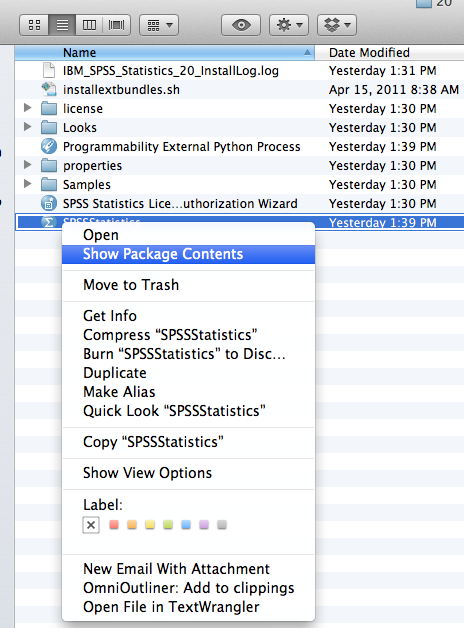
5. Go to where you have SPSS installed, hold down the control key and click. You should see a drop down menu like this. Select SHOW PACKAGE CONTENTS
When you open the Contents folder, you’ll see a bunch of other folders. One of them is named Extensions. When you look at this, you can see right away what the problem is. That extensions folder is empty. That is where your modules are supposed to be. So, where are they?
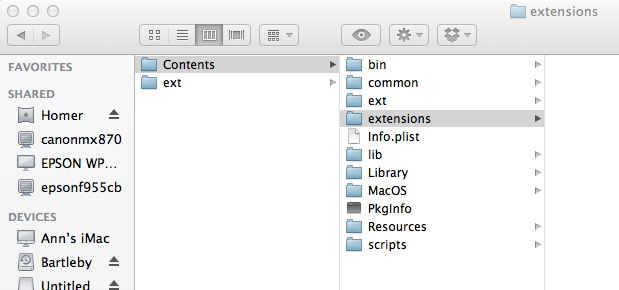 That’s a very good question. If you search, you won’t find them. They are in the Library folder at the root. Go look there. I bet I’m right.
To find them, click on your hard drive – mine is named Alice because I like Alice in Wonderland. You should see folders that say Application, Library, Users and maybe a few others. Click on the Library folder.
This was my problem before, I looked in the Library folder and expected to see something named IBM or SPSS and didn’t find anything. 
Open the Application Support Folder
Open the folder IBM
Open the folder SPSS
Open the folder Statistics
Open the folder 20
NOW …. you see Extensions
Open that folder. Copy everything in it.
Go back to the empty Extensions folder in the SPSS Contents folder
Paste everything into it.
Open SPSS.
Everything now works.
You’re welcome.
I wonder if you can’t create a symlink instead of copying files over? Then when you get software updates, you don’t have to copy everything over again…
thank you so much!
AnnaMaria-First off, I want to say…Thank you thank you thank you! Your work and more importantly the documentation of your work has been extremely helpful. Also, we all appreciate your sense of humor when it comes to the kind of thing that can be very frustrating at times. Right now, I”m having one those times and I really hope you can help me out. After many trials and tribulations, I was able to get my mac OS 10.7 to run PSM extension and get SPSS python and fuzzy to play nicely The thing is, I don’t know how long it’s going to take or whether its really working or not. It just says “Running Fuzzy”, I have approximately 309 pairs in the treatment group in a sample of 7000. There is no missing data in any of my covariates. I ran the PSM extension procedure and the logistic regression module turned out results which I can see in my output. So far not no errors like the one that was plaguing me before. “This procedure requires version 1.3.1 or higher of FUzzy..”
I’m not being impatient but I have a bad feeling that part of the issue is that SPSS doesn’t like Lion. I ran your SPSS nearest neighbor macro and it took like 5 hours to find 300 pairs, while a colleague did the same matching in 1.5 hours.
Can you give me an idea of the typical times this should take? Some other details. N=7000 n=309 treatment macbook pro Lion. 8gb of RAM.spss21
thank you!
If you define the environment variables SPSS_EXTENSIONS_PATH and SPSS_CDIALOGS_PATH you can install extension commands and (if it has one) the associated custom dialog to an arbitrary location on your computer. That’s a lot easier than using the SPSS install dir. If you use multiple paths, SPSS installs the command to the first location where it has write access.
I found that….
all you need is to delete the original fuzzy file in application support dictionary after you install the plug-in
then re-install the fuzzy.spe file….