Dude, where’s my estimates? Illegal path? A forgetful person’s guide to AMOS
I don’t use AMOS for structural equation modeling all that often and every time I do I have to look up all of the steps again.
1. Install SPSS and AMOS. Fortunately, it seems to work on Windows 8. Yay! You can either open AMOS by double-clicking on it or you can open it directly from the ANALYZE menu in SPSS
2. Go to FILE > DATA FILES > Click on FILENAME and then go to wherever the SPSS file is saved. When you open the file, if you haven’t opened it from SPSS and want to look at the file to be sure you have the right data, if you click on the View Data tab it opens SPSS and the data file.
3. Click on the RECTANGLE (top left corner) and draw a box for each observed variable.
4. Double-click on each box to give it a variable name and label
5. Click on the single arrow to draw paths, the double arrow to draw covariances
6. Include an other term for error variance
7. Set the regression parameter of one of the paths to 1
8. Click on View > Analysis Properties and select Output. If you don’t do this, you won’t get much output and you will be disappointed. At a minimum here select standardized estimates, but you probably want squared multiple correlations and maybe some other stuff too.
9. Select Calculate Estimates
At this point, you may get the dreaded error … Path is not of a legal form.
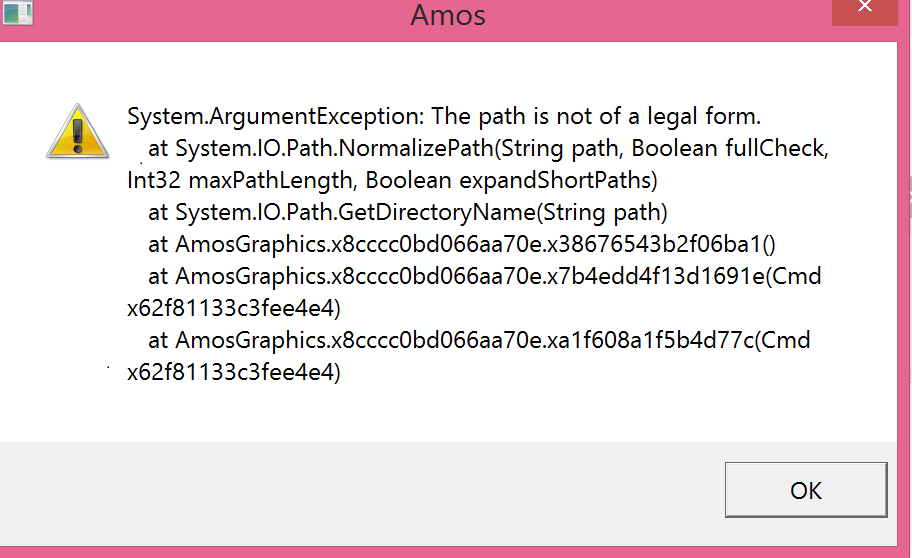 10. Here is what you need to do – save your file. The AMOS manual says you should be prompted to save your file, but I wasn’t (neither on Windows 7 nor on Windows 8). However, saving the file solved the problem.
My assumption is that AMOS writes output to a path relative to where your AMOS file is saved and if you haven’t saved the file, it causes this error.
So, hurray, hurray it runs and you are looking at the exact same model you were a minute again. Where are the estimates?
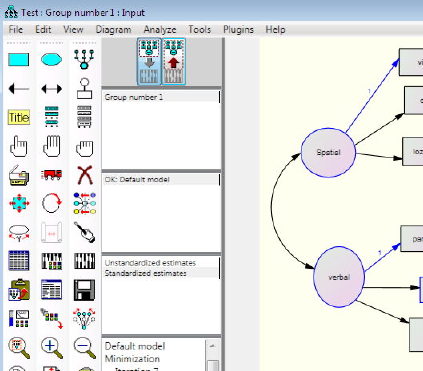
11. Click the SECOND button in the top middle pane and change-O presto, your estimates appear on the path diagram. You can also select TEXT OUTPUT under the VIEW menu for some tables.
I’ll finish up this project and several months from now when I’m using AMOS again I’ll be glad I wrote this post.
I just wanted to let you know that you TOTALLY saved my bacon with this post. I have been banging my head against the AMOS wall for WAY too long and this fix worked perfectly.
THANK YOU.
this post totally saved my weekend!
Thank you & keep up the good work!
THANK YOU!!!!!!
Thank you!
I very much appreciate the help.
I have been reduced to tears with SEM the last two days. Now when I finally got to the last test, by literally re-doing everything else almost three times now, I got this message which made me want to run away for good. “But wait…let’s google it”. Tahnk you sooooooo much!
You’re welcome.
hello….my amos give me error that one of my observed error is unobserved….what can i do????help me plz
hi,thanks alot
after drawing diagram,i see error ‘this path is …’.
then i saved diagram and later i run amos and click on calculate and program calculate estimates.
Actually, the SECOND button in the top middle pane in my AMOS is not displayed for clicking. So i can’t still see the estimates.
How can i deal with it?
Please help me. Tks you in advance
Dear Ngoc and everyone who has difficulty viewing the model estimates because the red arrow pointing upwards (for viewing the the Output Path Diagram) is greyed out.
I experienced the same problem and after a few hours tinkering, may have found a solution (Note, I have absolutely no logical ground for my argument, it just worked for me!).
Solution: After adding a new variable and its contents, you need to save the file with a different name (e.g., Filename 1.1, 1.2, 1.3… etc.).
As Ann Maria’s post indicates, AMOS is a bit funny with saving documents before running them fresh. I did the following, whilst saving the file with a new name upon introducing a new variable (a lot of it is probably quite compulsive and unnecessary):
1. Create the variable and its subvariables (as many as needed).
2. Name the variable.
3. Add the items to the subvariables in ascending order.
4. Name each error variable (E1, E2 … etc.). Then select the Parameters tab and add a ‘1’ to the Variable value for each.
5. Covary the main variables (if you have >1). Don’t resize the variables yet, do this after step 7.
6. Save as a new document name.
7. Run… Make sure you view the standardised estimates.
8. Resize the variables to your liking.
Then repeat the process (e.g., add a new variable and its contents, save the file with a new name, and run).
I hope this helps anyone out there with the same, rather pathetic, issue!
Matthew
pls help me,
I am running very simple model with two factors and 5 variables for each. The data file also has not any problem since previously i ran a complex model by using that data set. Now when i am running this simple model, it is not given any error message but the output button is not activated. why is that? do u have any idea?
pls help me
Hello,
Amos is giving me error that observed variable is represented by an ellipse in the path diagram. Actually that is my latent variable and I don’t know why its giving me this error. Please guide me I am so upset.
Lifesaver!! I was all excited to run it and theeeen… nothing.. where are my estimates?? so you saved me from a huge headache!
hi guys, i have a big question. I have a latent variable and 6 observed variables. so, normally, we have to draw 6 paths from latent variable to 6 observed variables but only put value “1” just for only 1 path, right?
i do correctly followed the guidance, but after choose out put and click calculate…it still doesnt work 🙁 doesnt show result :((
i tried to put 6 value “1” to 6 paths, then they work – but wrong method already?? who can help me? pliz help me pliz banging in my head :'(