Last week I wrote a bit about how to get an exploratory factor analysis using Mplus. The question now, is what does that output MEAN ?

First, you just get some information on the programming statements or defaults that produced your output:

INPUT READING TERMINATED NORMALLY

Exploratory Factor Analysis ;

SUMMARY OF ANALYSIS
Number of groups                                                 1
Number of observations                                         730

Number of dependent variables                                    6
Number of independent variables                                  0
Number of continuous latent variables                          0

Observed dependent variables

Continuous
Q1F1        Q2F1        Q3F1        Q1F2        Q2F2        Q3F2

Estimator                                                       ML
Rotation                                                    GEOMIN
Row standardization                                    CORRELATION
Type of rotation                                           OBLIQUE

This tells us we our analyzing all of the data as one group, and not, for example, separate analyses for males and females. We have 730 records, six variables, all of which are continuous and listed above. The maximum likelihood method (ML) of estimation is used and the default rotation, GEOMIN, which is an oblique method, that is it allows the factors to be correlated.

Here we have a list of our eigenvalues

RESULTS FOR EXPLORATORY FACTOR ANALYSIS

EIGENVALUES FOR SAMPLE CORRELATION MATRIX
1           ………  2         ………    3             4             5
________      ________      _____     ________      ________
1.866         1.262         0.866         0.750         0.716

EIGENVALUES FOR SAMPLE CORRELATION MATRIX
6
________
0.539

In this case, you could go ahead with the eigenvalue greater than one rule, but let’s take a look at a couple of other statistics. First, we have the results from the one factor solution.  Here we have the chi-square testing the goodness of fit of the model

Chi-Square Test of Model Fit

Value                             96.228
Degrees of Freedom                     9
P-Value                           0.0000

We want this test to be non-significant because our null hypothesis is there is no difference between the observed data and our hypothesized one-factor model. This null is soundly rejected.

Let’s take a look at the Chi-square for our two-factor solution
Chi-Square Test of Model Fit

Value                              3.016
Degrees of Freedom                  4
P-Value                           0.5552

You can clearly see that the chi-square is much smaller and non-significant.

Let’s take a look at two other tests. The Root Mean Square Error of Approximation (RMSEA) for the one-factor solution is .115, as shown below. We would like to see an RMSEA less than .05 which is clearly not the case here.

RMSEA (Root Mean Square Error Of Approximation)

Estimate                           0.115
90 Percent C.I.                    0.095  0.137
Probability RMSEA <= .05           0.000

For the two factor solution, our RMSEA rounds to zero, as shown below

RMSEA (Root Mean Square Error Of Approximation)

Estimate                           0.000
90 Percent C.I.                    0.000  0.049
Probability RMSEA <= .05           0.954

Clearly, we are liking the two-factor solution here, yes? The eigenvalue > 1 rule (which should not be TOO emphasized) points there, as does the model fit chi-square and the RMSEA.

In their course on factor analysis, Muthen & Muthen give this very nice example of a table comparing different factor solutions using the data

Mplus_EFAmodel_selection

They also like the scree plot, which I do, too. I also agree with them that one should never blindly follow some rule but rather have some theory or expectation about how the factors should fall out. I also agree with them in looking at multiple indicators, for example, scree plot, chi-square, RMSEA and eigen-values.

Previously, I discussed how to do a confirmatory factor analysis with Mplus. What if you aren’t sure what variables should load on what factor? Then you are doing an exploratory factor analysis. Really, you should probably do the exploratory factor analysis first unless you have some very large body of research behind you saying that there should be X number of factors and these exact variables should load on them. If you’re analyzing the Weschler Intelligence Scale, you probably could skip the exploratory step. For everyone else …. here is how you do an exploratory factor analysis with Mplus.

TITLE : Exploratory Factor Analysis ;
Data:  FILE IS ‘values.dat’ ;
VARIABLE: NAMES ARE q1f1 q2f1 q3f1 q1f2 q2f2 q3f2 ;
ANALYSIS: TYPE = EFA 1 3 ;
ESTIMATOR = ML ;

When no rotation is specified using the ROTATION option of the ANALYSIS command, the default oblique GEOMIN rotation is used.

I explained the first three statements earlier this week.

The fourth statement is new. Like the other statements, you need to follow the ANALYSIS key word with a colon and end each statement in the command (or if you are familiar with SAS, think of it as a procedure) with a semi-colon.

TYPE = EFA 1 3 ;

Requests an exploratory factor analysis with a 1 factor solution, 2-factor solution and 3-factor solution.  Of course, depending upon your own study, you can request whatever solutions you want. This is really useful because often in an exploratory study you aren’t quite sure of the number of factors. Maybe it is two or maybe three will work better. Mplus gives you a really simple way to request multiple solutions and compare them. I’ll talk more about that in the next post.

ESTIMATOR = ML ;

requests maximum likelihood estimation.

If you are interested in factor analysis at all, there is a really good video on the Mplus site. Far more of it discusses exploratory and confirmatory factor analysis – methods, goodness of fit tests, equations, interpretation of factor matrix – than Mplus, which as you can see, is pretty easy, so even if you are using some other software the video is definitely worth checking out.


Someone had a question about factor analysis with Mplus and even though it is not a piece of software I work with normally, we aim to please at The Julia Group, so I downloaded the demo version and away I went.

It truly was, as my granddaughter says, easy-peasy lemon squeezie.

You might not think so, because the first thing you are confronted with is pretty much a blank window like this

screen shot of editorFor people who are used to Excel, SPSS, SAS Enterprise Guide or other friendly GUI interfaces, this might be a bit off-putting. However, doing a confirmatory factor analysis was this easy.

1. Create a .dat file from the original file. The file was in a SAS format and I did not have SAS on the laptop I was working on (I’m in Cambridge, MA at the moment). What I did was

  • Open the file in SPSS by, from the FILE menu selecting READ TEXT DATA and then selecting SAS as the format
  • Ran this SPSS command from the syntax window to output a tab-delimited file with no header, which was the type of input Mplus would expect.

2. Type in this program to do a two-factor solution with the first three variables loading on the first factor and the next three loading on the second factor.

TITLE : Confirmatory Factor Analysis ;
DATA:  FILE IS ‘/Users/annmaria/Documents/mplustest/values.dat’ ;
VARIABLE: NAMES ARE q1f1 q2f1 q3f1 q1f2 q2f2 q3f2 ;
MODEL: f1 BY q1f1 q2f1 q3f1 ;
f2 BY q1f2 q2f2 q3f2 ;
OUTPUT: standardized ;

3. Click the RUN button.

That is really all there was to it.

Okay, well that is easy if you knew what to type so let me explain a few things. If you know SAS or SPSS this will be easy.

Each of those things that I put in all capitals is a command in Mplus, analogous to a DATA or PROC step in SAS and a command in SPSS. They don’t need to be in all caps, I just did that for ease for the reader. They DO need to be followed by a colon and then end the statement in a semi-colon.

Title – pretty obvious, gives your output a title.

DATA: FILE IS  — gives the path to locate your data.If your file is in the same directory as your program, you don’t need a fully qualified path and can just call it ‘values.dat’

VARIABLE: NAMES ARE

Give the names of your variables. You can specify a format but if you do not Mplus assumes they are in free format, which is the same as what SAS refers to as list format.  You might want to note that if you are using the demo version you can only have a maximum of 6 independent and 2 dependent variables.

MODEL:  This is my model (duh) and I am modeling two factors. The first factor I creatively named f1 and it is represented BY (notice the BY in the command) variables also creatively named q1f1 q2f1 and q3f1.

Similarly, I have a second factor named f2 ;

I added an OUTPUT statement with a standardized option because I wanted (surprise) standardized estimates. That statement is not required but as you’ll see in my next post on interpreting factor analysis data, you do want it.

I am intrigued by Mplus. It sort of assumes you have close to perfectly cleaned up data because I wouldn’t want to be doing a lot of data management with it, but for doing some relatively complex models  – factor analysis, path analysis, structural equation modeling – it looks pretty cool.


If that sounds like total marketing b.s. to you, I can’t blame you — download this app and supermodels will throw themselves at you with thousand dollar bills in their teeth.

Well, no super models are provided but the SAS Web Editor really *will* write your code for you in the latest version soon to be released. They have these things called templates which are code snippets.

So, if you want to do a PROC SQL, you can select that option and the code will be written. You’ll still have to select the variables you want, of course.

20130430-140856.jpg

There are other code helper options and that would be the big selling point for me if they were actually selling it instead of giving SAS Web Editor free to universities. Often, I end up doing that myself – creating models for students to follow to ease them into programming.

If you are at SAS Global Forum you can go to meet up in room 2001 at 6 pm and find out for yourself. You can also say what else it is you would like to see in the next release.

Personally, I’d like to see the option to email output added because my students often email me their homework. Think how easy it would be if they could run SAS, get the output and click an email button to send it to their professor. Well it would be easy for *me* and for the students, not so sure how easy it would be for the SAS people to get to work,but it’s not about them, it’s all about ME.

Closest I could come to super models below
Darling Daughter #3

Trying this live blogging from SAS Global Forum again.
The title kind of says it PROC QUANTLIFE new procedure in SAS 9.3
Why DO we need a new procedure for survival analysis?

======
Survival analysis used to analyze time-to-event data
already had procs lifetes, lifereg & phreg
========
Lifereg is fine if you have IID errors – but what I’d you don’t . Enter quantile regression, possibly wearing a cape #Sasgf13 #noCape
=========
Qy(tau) is the tau-th quantile of a random variable Y eg Qy(25) is 25th percentile
==========
Quantile regression – can have same slope & different intercept for each value given for tau
Quantile regression, option 2 can have different slopes for each value of tau #Sasgf13
=============

Cumulative distribution function is the inverse of the quantile function #Sasgf13

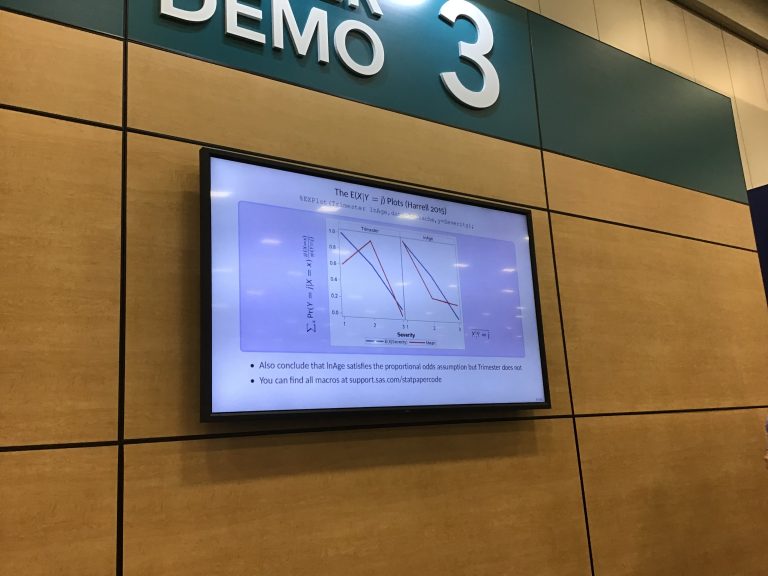
QUANTLIFE example shows covariate that has negative effect for those with short life but positive effect for those with longer life #Sasgf13

Interested in survival analysis when covariates have non-linear relationship to time to event? Check the QUANTLIFE procedure paper #Sasgf13

Here is my first attempt at live blogging on my new iPad and my first effort with the WordPress app.
Peter Eberhardt doing a Hands-On workshop at SAS Global Forum. It’s standing room only well it would be standing room only if they let you stand. It’s actually full & they are going to turn people away. If the turn you away, don’t pout, there are plenty of other awesome sessions.

The workshop is on doing the perfect pivot table with SAS

Starts by explaining what a PivotTable is & how do one in Excel

To do in SAS only need base SAS

Download the TableEditor tagset from the SAS website.
Link in Eberhard’s paper
TableEditor tagset not included in the SAS distribution
It’s a file with a PROC TEMPLATE
According to Eberhardt you don’t *have* to know anything other than it exists, but you can modify it if you want, for example to change the color scheme

=================
Start your program with

ODS TAGSETS.TABLEEDITOR FILE= “filename.html”
options( auto_excel = “yes” pivotrow =”some_name” pivotcol = “othername”

Creates an html file

auto_excel = yes —

====
Back to that later, I guess. Looking at the tableeditor.sas file.

Lots of proc template code.
===================
Okay, back to our ODS statement

options(
button__text = “”
auto_excel = “yes”
pivotrow = “some_name”
pivotcol = “other_name”
pivotdata = “other_name2″
pivotpage = “some_other_name”

=================

Don’t worry about the ActiveX warning that comes up. You also get told there may be data in the other worksheets and you might be deleting it. Just say it’s okay.

==============================================

Summary variable – sum statistics is selected by default

pivotdata_stats = “sum, average”

================
if you want a different column for each statistic, you can match them up like this,

pivotdata = “some_name, othername”
pivotdata_stats = “sum,average”

==========
The auto_excel = yes puts a button on your html output file which will automatically start Excel when you click on it

=============

Not sure the pivot table tagset is something I would use personally but it is kind of cool

Peter does not know if it would work with openoffice / libreoffice if you clicked on the auto_excel button. Well, that sounds like a challenge (-:

==================
Lots of javascript code involved in creating the html page. Not sure if I would use this but it is interesting to read to see how it is done

==================
Creating multiple pivot tables – I remember working at a company years ago where we did a zillion of these by hand , well automatically more or less using Excel, but we did do them one at a time. We wrote some clunky VBA macros.

==============

pivot_series = “yes” <— gives you the multiple sheets
pivotrow = “Name1 | Name1 | Name1″
pivotcol = “Something | Something| Something”
pivotdata = “Variable | Variable | Variable ”
pivotdata_stats = “sum | average | minimum”

This will give you three pivot tables, one each with the sum, average and minimum of the variable over whatever the something column and Name1 rows are

==============
Eberhardt says list of options for table editor tagset is in his paper
====
Big advantage of using tableeditor tagset is you can do the code once, automate the task and have it run every day, week or whatever.

Again, I don’t know if I would use this personally on the projects I’m working on now but I certainly can see the usefulness of it
=====

Bottom line – if you have SAS & you need to do a lot of pivot tables in Excel particularly if you have to do the same ones repeatedly, just as the data change, get Eberhardt’s paper in the SAS Global Forum proceedings.

You can also creat pivot charts

I’m always a bit bemused when people refer to me as a “SAS expert”. I don’t think of myself as an expert at anything except, perhaps, bricolage, a word I am indebted to sascommunity.org for even being aware of its existence.

Merriam-Webster defines it as:

: construction (as of a sculpture or a structure of ideas) achieved by using whatever comes to hand; also : something constructed in this way
Origin of BRICOLAGE
French, from bricoler to putter about

Often, I think there are probably much more elegant ways of doing things but mine gets done very quickly which my clients appreciate since they pay me by  the hour.

Christmas tree made from shopping carts

One example of bricolage that comes to mind is my frequent use of PROC SUMMARY for output as input.

Take this recent problem.

Bricolage #1

A researcher had three measurements on each subject. The dependent variable was the mean of these measures. They were all taken at the same time, so this wasn’t a repeated measures type of design.  All I needed was to get the mean. Data were entered like this.

ID Group  Measure

01 ooo1 .47

01 ooo1 .46

01 ooo1 .46

02 o001 .49

02 ooo1 .48

I could have created a couple of variables using the LAG function, but really, I found this to be much quicker.

PROC SORT data = myfile ;

BY ID  GROUP;

PROC SUMMARY DATA = myfile ;

BY ID  GROUP;

VAR  measure ;

OUTPUT OUT = myfilefix / AUTONAME ;

DATA myfilefix ;

SET myfilefix ;

WHERE _STAT_ = “MEAN” ;

DROP _STAT_  _FREQ_  _TYPE_ ;

See what I mean about bricolage? I’m sure a real expert would have used some DROP option on the dataset in the PROC SUMMARY or something and not needed the DATA step to only keep the variables for ID, and the mean of the measure variable, and some other option to only compute the mean statistics but since this took me all of five minutes and it was not a large data set to worry about sorting and time taken by extra steps, I didn’t bother. The reason for including the group variable in the sort and proc summary as well as the id variable, even though it is obvious that the same individual will always be in the same group, is simply so the group variable was carried along and saved in the file output by PROC SUMMARY. I’m sure a real SAS expert would have a less kluge-y way of doing that, also.

Bricolage #2

The researcher had individual subject data in one file and the group data in another file. For example, a record of all students and a record of data for the classroom. We want to merge these two files. In this case, however, the student file had a student id variable and the class file had a classroom id. Fortunately, there were 10 students selected from each class, so that students with id numbers 1-10 were in class 1, id numbers 11 – 20 were in class number 2, and so on.

I could have done a PROC FORMAT or maybe a DO -loop. What I did was this”

class = INT((student – 1)/10) + 1 ;

If I use the SAS function INT take the integer part of  1/10 to 9/10   I get 0 and if I add 1 to that, I get class = 1.

What about student number 10? Well, he or she will end up with 10/10 = 1  , add a 1 and that student will be in group 2. Not correct.

If I subtract one from every student number, it works out and sorts them exactly correct. I’m sure a real expert would know some function that does exactly that, but hey, it was one line and gave me the exact results I wanted.

See what I mean? Bricolage.

I will concede that there are times when I am working with an enormous dataset when I need to do things as efficiently as possible, or when I am teaching and I need to show the exact “best” method .

There are other times, though, when I just slap something together and call it a day.

A friend of mine, also a consultant, who would definitely consider himself a SAS expert, said, disapprovingly,

“I would never do that.”

He went on to ask me if my clients were satisfied with the way I work.

I told him that sure, I have lots of the same clients for a decade or more. Often, with simple problems like the ones above, it takes me so little time to get the correct results, I just knock it out in a few minutes and I don’t even charge them, which makes them particularly satisfied. That’s the part where he REALLY gasped and said,

“I would NEVER do that!”

I haven’t been using Enterprise Guide much lately but tonight I could not get the SAS Web Editor to work and I had some graphs I needed to get done. It was convenient to do this with SAS Enterprise Guide because I wanted to do bar charts of the mean of one variable broken down by three other variables. There are a few things, though, that I always forget how to do with SAS Enterprise Guide graphs and I always have to look them up again, so I’m writing it all in one place for the next time I need to remember how to do this.

For example,let’s say I gave children one of two brands of juice. They received the juice either 25%, 50% or 75% of the school days and the other days I gave them either distilled or fluoridated water. At the end of some time, I wanted to measure the amount of Fluoride in the children’s system. (Don’t worry if this is possible or not, it’s just an example). SAS is handy for this because you can create a summary table using the SUMMARY TABLES task and then under results click to save the results to a data set. Now I have my data nicely set up to graph.

I want it to have one bar for each unique data value. I don’t want it to scale the X axis to fit the data and show bars at 30%, 60% or whatever. I want it show the EXACT value of 25%. (Note: If these images are too small to see you should be able to double-click to bring up the original image size.)

The first part is easy. Under the APPEARANCE tab in the left window pane, click BAR. Then, in the window that appears near the bottom, click on SPECIFY NUMBER OF BARS and click next to the first button ONE BAR FOR EACH UNIQUE VALUE.

Also, I have two different groups and I very, very much want the bar charts to have the same vertical axes to make it easy to compare them side by side.

SAS does NOT do this by default. Instead, it scales to fit your data. I don’t want that. I want both charts to have the same maximum and minimum.

The next step is to make sure the Y axes of each chart are the same. Under VERTICAL AXES click MAJOR TICKS. In the window that appears, click the button next to the last option, SPECIFY. On the right side of the window you can now give individual tick marks for the Y axis or you can give a scale, such as 0 TO .5 BY .05 .

scalevertical


Note:  I did this with SAS Enterprise Guide 4.2 and it worked fine. I did it with SAS On-Demand for SAS Enterprise Guide 4.3 and it did NOT work. Not at all. Not even when I copied and pasted the code into the program editor and ran it. It just did not re-size the axes. I have a very old version of SAS Enterprise Guide/ SAS On-Demand. In fact, the only reason I was using it at all was because the SAS Web Editor wasn’t working. So, hopefully that is something fixed with the new release coming out in June.

Minor thing – I want to change the label on all of these to make my chart look better. Since it already says in the title it is the mean Fluoride level, I want to change the variable name from what the TABULATE procedure named it Fluoride_mean to just Fluoride. To give a variable a different label on the chart, right-click on the variable name once it has been dragged into the task role on the right window pane. Select PROPERTIES. A window will pop up that allows you to change the properties (duh). Type in whatever label you want.

labelvariables

After you have given it a label and closed the properties window, right-click on your variable again. This time select SHOW LABELS.

showlabels

So, now I have my nicely labeled chart with the same Y axis for both graphs and a unique bar that matches exactly each of my categories.

Just another random thing I always forget. I happened to be doing this running Windows 7 using boot camp on a Mac. If you want to take a screen shot using a Mac some help pages tell you to use the F14 key. Just one problem – my keyboard only goes up to F12.  Fn-shift-F11 will do a screen print when you are using boot camp.

fishtank

In a Dilbert cartoon, the pointy-haired boss tells Dilbert,

We need to give our customers what they want.

To which Dilbert replies

What our customers want is better products for free.

Upon reflection, Dilbert and the boss agree to give them a fish bowl screensaver

It has been said before that SAS is just offering on-demand for free to compete with R in the educational market. That may be true, but Microsoft and Adobe want to compete in the educational market, too, and they aren’t offering me free stuff so I say, “Hurray for SAS”.

The three biggest problems I would say SAS had in attracting student and faculty use were:

  1. It was a pain in the ass to install and update
  2. It was too expensive
  3. It only ran on Windows and Unix machines

SAS On-demand was the beginning, with a free version of SAS Enterprise Guide and SAS Enterprise Miner. It was pathetically slow over wireless, though, so much so that I took to recording the instructions in my office  where I had a wired connection and putting the movie on line for students to watch, or playing it in class. Students would try to do the assignments in class, but again, the wireless connection was a major bottleneck. Also, many of my students had Macs and SAS On-Demand with SAS Enterprise Guide only ran on Windows NATIVE (not virtual machines). It was less of a pain in the ass to install but there were occasional problems.

Enter SAS Web Editor. The drawback is that you need to learn programming, but personally, I have come full circle to considering that an advantage rather than a drawback, and so, I believe will my students.

Not only is the Web Editor free but there is nothing to install. It runs in a browser. Before you get all excited, let me point out that the version I am using is free to FACULTY AND STUDENTS IN HIGHER EDUCATION. Registering as a professor took me a few minutes and I was approved that afternoon.

If you are a student, once you register and log in here

https://support.sas.com/ctx3/sodareg/index.html

You can select the course at your university for which you need a SAS On-Demand license. If your professor selected SAS Web Editor, once you have registered all you need to do is click

runclient

Run Client and SAS Web Editor opens in a new window. Not only does it run on a Mac or Windows machine but it also runs on an iPad.

Not one to take anyone’s word for anything, when I was stuck in the theater yesterday, I pulled out my iPad and tried it. The Spoiled One and her friends had gone to an R-rated movie and since she needed a parent to get in, I paid for a ticket, walked in with her and walked out back to the lobby before the movie had a chance to rot my brain. (Suffice it to say that we have different tastes.)

So, here I am with no wi-fi and the original iPad. I figured if it would work on this it would work on anything. First, I started the web editor, just by logging into my account at the link above and then clicking on Run Client. Popped up fine. At first you’ll see your list of projects.

I opened a project I had run before. See below.webeditoripad

Click on the BROWSE button at top left of the screen to see your list of projects again.

I clicked on the little running guy to run my project. It ran in a few seconds and the results popped up. This was a very small job, as you can see, with only 634 records.  I did two frequency procedures, a proportional random sample by strata with proc surveyselect and a proc print – not exactly high intensity programming, but very similar to the type of assignment a student might be doing.

ipadresults

Since I was still sitting there waiting for The Spoiled One’s movie to be over, I used the Web Editor to analyze some dummy data similar to a problem a student was working on, run a one-sample t-test

proc ttest ho = 11 ;

var score ;

in case you were wondering and answer her question.

So, for what the average students would need to do and what the average professor would need to help them, yes SAS Web Editor is a better product, for free.

To my disappointment, no fish bowl screen saver was included.


In new product development, in research, you WILL go down some dead ends. Accept it.

Next Page →